

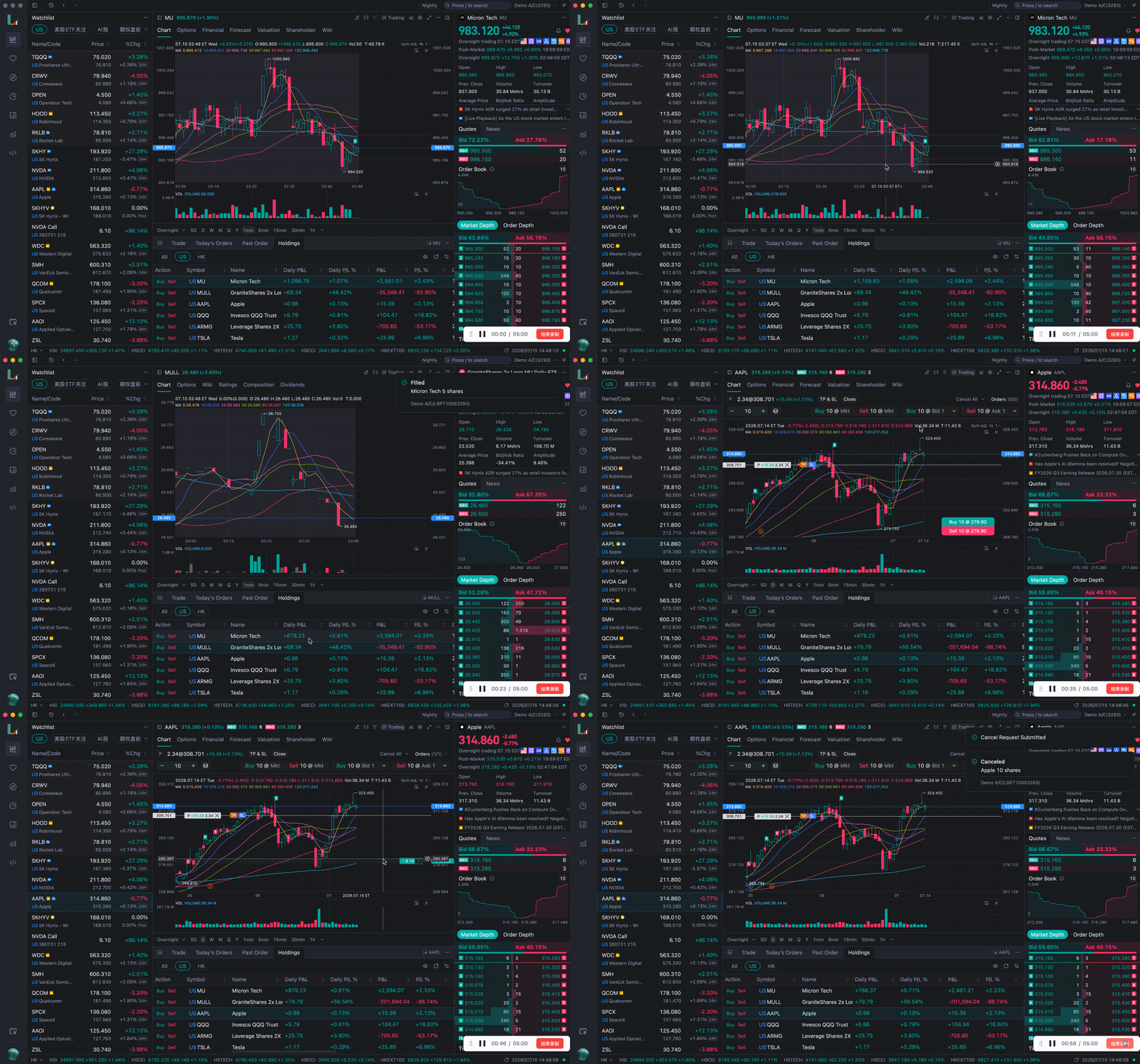
Trading shortcuts let you buy, sell, close positions, and cancel orders directly from your keyboard—no mouse clicks needed. They're built for active traders who prioritize execution speed. Shortcuts work globally: no matter which panel you're on, pressing a shortcut triggers the trade.
This feature is only available on the new desktop app. Please download the latest version from our official website. Shortcut settings on the legacy desktop app work differently from what's described here.
1. Set up trading shortcuts
- Open the desktop app and go to Settings > Shortcuts;
- Under the Trade section, find the action you want to set (e.g., Buy at market price, Sell at Bid 1);
- Click the input field on the right and press your preferred key combination.
Key combination rules:
- Windows: Ctrl, Shift, or Alt + a number or letter;
- Mac: Ctrl, Shift, Option, or ⌘ + a number or letter.
Trading shortcuts are empty by default. You'll need to set them up before they take effect.
2. Available trading shortcuts
| Action | Description |
|---|---|
| Open quick trade | Opens the quick trade window. Default shortcut: ⌘ T on Mac, Ctrl + ` on Windows |
| Buy | Place orders at market price, Bid 1, or Ask 1 |
| Sell | Place orders at market price, Bid 1, or Ask 1 |
| Close position | Close your position in the current stock with one keystroke |
| Cancel orders | Cancel all orders, all buy orders, or all sell orders for the current stock |
The desktop app also provides the following global shortcuts (set by default and ready to use):
| Function | Mac | Windows |
|---|---|---|
| Open stock panel | ⌘ 1 | Ctrl 1 |
| Open watchlist panel | ⌘ 2 | Ctrl 2 |
| Open markets panel | ⌘ 3 | Ctrl 3 |
| Open assets panel | ⌘ 4 | Ctrl 4 |
| Open indicators panel | ⌘ 5 | Ctrl 5 |
| Open quick trade | ⌘ T | Ctrl + ` |
| Quit | ⌘ Q | [TBD: Windows quit shortcut] |
3. Set your quick trade quantity
Go to Settings > Shortcuts > Quick trade quantity to set how much each shortcut order trades, separately for each market.
- US, HK, and SG stocks: set by quantity or by amount.
- When you order by amount, it's converted into the corresponding number of shares based on your buying power. Amounts are denominated in USD for US stocks, HKD for HK stocks, and SGD for SG stocks.
- When you order by quantity: US stocks are in shares, HK and SG stocks are in lots, and options are in contracts.
- Options: order by quantity only, in contracts.
Please note: the trade quantity can't be 0. If it is, you'll be prompted to complete the setting when you trigger a shortcut.
4. Order rules for shortcut trades
Orders placed via shortcuts are submitted with the following defaults:
- Time in force: Day;
- Market orders: available during regular trading hours only;
- Bid 1 / Ask 1 orders: during overnight sessions, orders follow overnight quotes; outside overnight sessions, orders are supported during regular and extended hours. If your account doesn't have Bid & Ask data permission for the stock, you'll see a prompt when triggering the shortcut, and we recommend using a market order instead;
- Close position: defaults to a market order during regular trading hours; outside regular trading hours, the order is placed at the last price.
5. Which stock do shortcuts apply to
Shortcuts apply to the stock currently selected in the active panel. In a custom layout, click to select the stock you want to trade before pressing the shortcut.
- If no stock is selected, triggering an order shortcut will prompt you to select one first, or to use another order method;
- If the current stock doesn't support short selling but you trigger a short position, you'll also see a prompt and no order will be submitted.
6. Accidental-press protection
To prevent accidental orders, when you press the first key of a combination (e.g., Option), a pop-up will show the shortcuts you've set, so you can confirm before completing the combination. Once you're familiar with your shortcuts, simply press the full combination to place an order. After the order is placed, you'll see a confirmation message.
FAQ
Q: I pressed a shortcut but nothing happened. What should I check?
Check the following in order: whether you've set up the shortcut in Settings > Shortcuts (trading shortcuts are empty by default); whether a stock is currently selected; and whether the key combination conflicts with your system or other software.
Q: Could I place an order by accident?
When you press the first key of a combination, a pop-up shows the shortcuts you've set, helping you confirm before you act. We also recommend setting a quick trade quantity that matches your usual position size to limit the impact of any accidental orders.
Q: Can I set different order quantities for different markets?
Yes. Quick trade quantities for US stocks, HK stocks, SG stocks, and options are set separately, and all except options can be set by quantity or by amount.
- Business / KOL Partnership
- cooperation@longbridge.hk
- Public Relations
- media@longbridge.hk
- Terms and Conditions
- Disclaimer
- Terms & Conditions
- Privacy Policy

A licensed corporation recognized by the SFC (CE No. BPX066). Holder of License Types 1 (Dealing in Securities), 2 (Dealing in Futures Contracts), 4 (Advising on Securities) and 9 (Asset Management). Also a registered HKEX participant and HKSCC participant.

Registered with the Monetary Authority of Singapore (MAS), Long Bridge Securities Pte. Ltd. is a Capital Markets Services Licence holder and Exempt Financial Adviser (Licence No. CMS101211).

A broker dealer registered with the Securities and Exchange Commission (SEC)(CRD: 314519/SEC: 8-70711), a member of the Financial Industry Regulatory Authority (FINRA) and Securities Investor Protection Corporation (SIPC).

A New Zealand registered Financial Service Provider (FSP number: FSP600050), and is a member of the Financial Dispute Resolution Scheme, a New Zealand independent dispute resolution service provider.